Here are some Sencha ExtJS Model examples, from the official Sencha docs.
Define a User:
| A Machine Learning Bestseller | |
|
Machine Learning for Absolute Beginners |
Here are some Sencha ExtJS Model examples, from the official Sencha docs.
Define a User:
A good Sencha ExtJS form example.
Here are a few short examples of how to find an object in a Sencha Store (ExtJS or Sencha Touch).
As a first example, imagine that you have a Store of users, and want to find a user with the first name of “Alvin”. Assuming that your user model has a field named firstName, your query would look like this:
var user = usersStore.findRecord('firstName', 'Alvin');
After this query you can use the user object just as though you had created it by hand. (The object returned is a Model instance.)
This big drinking cup cost me a few thousand dollars and another bodily organ, but I like it.

Here’s a quick look at how to create outlined text using Gimp. I don’t know if that’s the right term, but I’m thinking of the large white text you see with a black border that you usually see on meme images.
Here are the steps I just used:
If you use a white font with a black background color, your image should look like this:

This Sencha ExtJS code snippet shows how to use the Ext.Element down method to get the value from a textfield:
A SO page has a nice example of how to capitalize each word in a string in JavaScript:
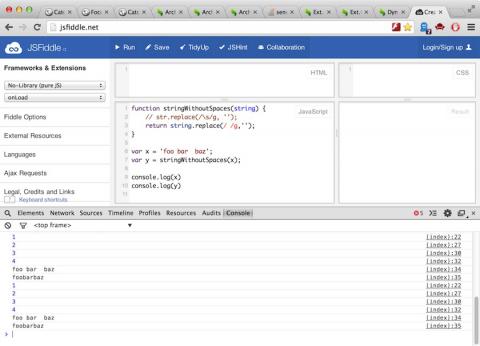
JsFiddle.net is a nice way to test JavaScript snippets. It’s a little like a REPL, but you need to press “run” for it to evaluate anything, and printing to the JavaScript console seems like the best way to see output.
Apple earns more than Google, HP, Intel, and Cisco combined. Wow.

I’m glad to see companies like Headspace offer meditation apps, and that they are separating a) meditation from b) religion.

On the campus of the University of Colorado in Boulder this morning: “Be mindful even when your mind is full.”

As a brief note, here are a few examples of how to implement left-trim and right-trim on strings in Scala:
def ltrim(s: String) = s.replaceAll("^\\s+", "")
def rtrim(s: String) = s.replaceAll("\\s+$", "")
If I ever write a Scala StringUtils class, I’ll be sure to include those functions in that class.
Summary: My “Wikipedia Reader” application reads Wikipedia pages to you. The current release is a very rough Version 0.1 (alpha) release. What’s new: 1) It works. 2) It’s packaged as a Mac OS X application. 3) It supports the use of multiple reading voices.
Update: I’ll get a new build out this weekend that eliminates the bugs shown in the video.
In my spare time I’ve been working on an application I call a “Wikipedia Reader” (or Wikipedia Page Reader). As its name implies, it reads Wikipedia pages and speaks the page content to you. The functionality is shown in this 112-second video:
I noticed recently that a Scala/Java Swing application I am developing on Mac OS X 10.9 has blurry text when it’s run as a Mac application. The text looks fine when I run the application through SBT, but looks blurry when I package it and run it as a Mac OS X application.
A solution is to put this text in the application’s Info.plist file:
| A Machine Learning Bestseller | |
|
|
Machine Learning for Absolute Beginners |