Mac OS X 10.9 has been sucking the life out of my old Mac, a 2008 iMac, so I decided to look into ways of bringing life back to my Mac. One way I just wrote about is how to disable the OSX Dashboard. Another way I’m experimenting with is the Mac OS X =purge= command.
Scala, Java, Unix, MacOS tutorials (page 276)
OS X 10.9 is sucking the life out of my old Mac, a 2008 iMac. Like turning off everything on Star Trek’s Enterprise so you can give power to something else (like the engines or shields), I keep looking for ways to bring a little life back to it. One way I’ve read about is to kill the Dashboard on 10.9.
You can kill the Dashboard with this Mac OSX defaults command, issued in a Mac Terminal window:
At age 38, Peyton Manning’s heartrate recovery is better than anyone else on the Broncos, by a wide margin. I can see him beating out big linemen, but wide receivers run all the time. From this Denver Post story.
Chicago Cubs’ broadcaster kept a “drinking diary” in 1972, and several other years. It sounds like he drank more in a year than I’ve had in my entire life. From this Chicago Sun-Times story.
This code shows how to add a title bar (titlebar) to a Sencha Touch panel:
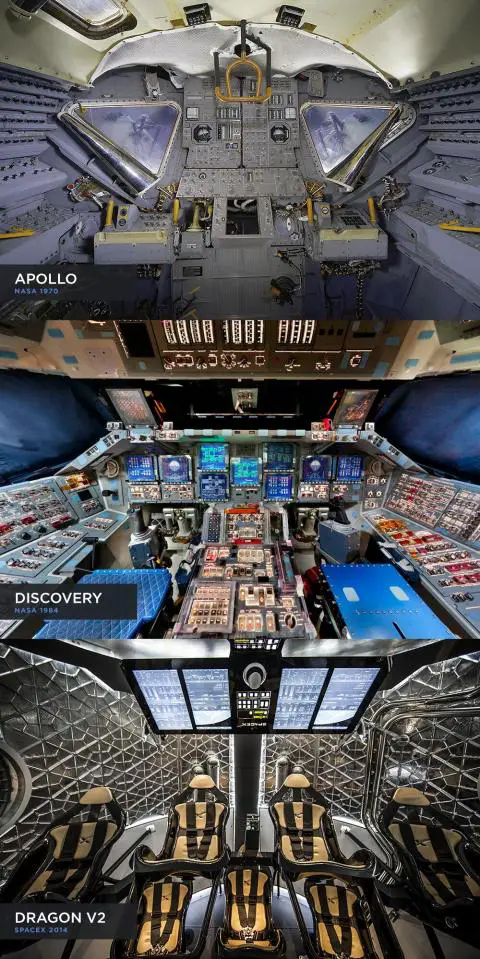
Wow: The 45 year evolution of spacecraft cockpit design from NASA Apollo to Discovery to SpaceX Dragon v2. From this Twitter URL.
Here is a small collection of Sencha ExtJS ‘Store’ objects from a recent project. I suspect they will also work with Sencha Touch, though I haven’t tried them there yet. (They may need a few small modifications, dunno.) I share them here hoping they will help anyone who needs to see some =Store= examples.
First, this Store object is named Users:
As a quick example of how to loop over each element in a Sencha Touch or ExtJS store, I use the following code to dynamically create a series of checkboxes.
In short, in a Sencha controller:
Ext.define('Focus.controller.Projects', {
extend: 'Ext.app.Controller',
I declare a Store:
stores: [
'Tasks'
],
then later create a reference to the Store:
Since upgrading to Mac OS X 10.9 I’ve experienced the problem other people have reported, where their Mac won’t shutdown, or shuts down very slowly. We had a huge lightning storm roll in a few days ago, and when my 2008 iMac didn’t shut down after three minutes of waiting, I finally had to press and hold the button on the back to force it to shut down.
Since then I’m glad to say that the following series of defaults write commands has helped my iMac to shut down much more quickly:
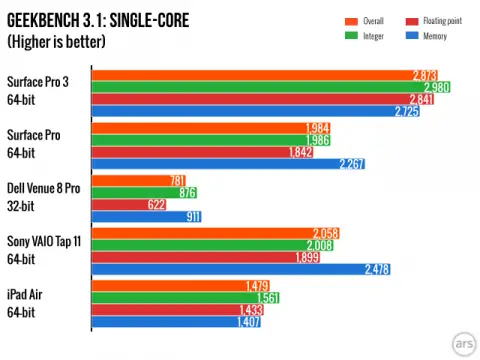
With reports that Apple is considering using ARM chips in their Mac lineup -- and with me using a Raspberry Pi for the last ten days -- I was curious about the performance of ARM chips vs Intel CPUs. I just ran across a story that showed this image, and several similar comparisons. The story states that the processor used in their test Surface Pro 3 is the Intel Haswell Core i5, so an i7 will be even faster. As a result, I don’t think Apple will be switching their laptops from Intel to ARM processors any time soon. (Unless of course you get at least 8-10 ARM processors in each system; even then, each processor will be significantly slower, and they would have to rely on apps being written to take advantage of many more cores). The original story is here on Ars Technica.
Here’s an example of how to print the formatted time in Python:
import time
print time.strftime("%a, %b %d %I:%M %p")
That code results in the following output:
Thu, May 29 11:26 AM
With the caveats that (a) I don’t know much about Python, (b) I don’t want to learn that much about it right now, and (c) I’m not concerned with performance at the moment, the following Python script does the following:
I know remarkably little about Python and GTK, but from the two URLs shown in the source code below I was able to piece together a working, “Hello, world” screensaver. Well, calling it a screensaver is a stretch, because what it will really do is burn the characters “Hello, world” into your monitor; but at least I cracked the code on how to get this started.
To try this on your own Linux system running xscreensaver, first save the following source code somewhere. I’ll assume that you’ve saved it to /home/al/hello.py:
I thought this might be harder, but if you have a file URL like “file:///Users/al/SherlockHolmes.txt”, and want to read those file contents as a Java URL, the process in Java and Scala is simple, as shown in this Scala code: