Scala, Java, Unix, MacOS tutorials (page 156)

If you’re interested in Domain-Driven Design (DDD), here is a link to an article titled “Effective Aggregate Design” by Vaughn Vernon.

(The article is available as three short PDFs that form the basis for his book, Implementing Domain-Driven Design.)

“Streaming platforms such as Spark or Flink use functional programming principles, with Scala as the implementation language. This isn’t without a reason; finally we’ve found that the mathematical foundations of functional programming provide the strongest basis to modularize our domain models.”

~ Functional and Reactive Domain Modeling

The Milky Way is moving at over half a million miles per hour. (In the time it took me to type that, we sailed about 1,500 miles through the Universe.)

Inside the Milky Way, the Earth revolves around the Sun at 66,600 mph.

The Earth rotates around its axis at about 1,040 mph (depending on your latitude).

And yet, somehow I feel like I’m sitting perfectly still in this chair.

That’s quite an illusion.

Solar eclipse today, surgery tomorrow. Let’s get this party started!

“Your parents name you, but they haven’t a clue who you are. Your friends nickname you because they know exactly who you are.”

~ Sting

As a quick note, here are some examples of the Java 8 lambda Thread and Runnable syntax. As a little bonus I also show the Java lambda syntax in other situations, such as with an ActionListener, and several “handler” examples, including when a lambda has multiple parameters.

The Java Thread/Runnable lambda syntax

First, here’s the lambda syntax for a Runnable that was introduced with Java 8, and now works with Java 11, Java 14, Java 17, etc., where I create a Runnable and pass it to a Thread:

Runnable runnable = () -> { 
    // your code here ...
};
Thread t = new Thread(runnable);
t.start();

And here’s the Java Thread lambda syntax (without a Runnable):

Thread t = new Thread(() -> {
    // your code here ...
});

You can also use this lambda approach to create a Java Thread, without creating a reference (variable) to the thread:

new Thread(() -> // your code here).start();

Note: There’s an interesting approach documented here:

def run2() = {println("hi2")}
new Thread(() => run2).start

The older Thread and Runnable syntax

If you can’t use Java 8+ lambdas — or don’t want to — here’s the pre-lambda thread syntax using a Runnable:

// pre java 8 lambdas
Thread t = new Thread(new Runnable() {
    public void run() {
        // your code here ...
    }
});

t.start();

Here’s the old Thread syntax, using the anonymous class approach:

Thread thread = new Thread() {
    public void run() {
        // your code here
    }
}

thread.start();

You can also create a class to extend a Thread and then run it, like this:

public class MyThread extends Thread {
    public void run() {
        // your code here
    }
}

MyThread myThread = new MyThread();
myTread.start();

Java 8 ActionListener examples

With Java 8 lambdas this ActionListener/ActionEvent code:

ActionListener actionListener = new ActionListener() {
    public void actionPerformed(ActionEvent actionEvent) {
        handleMakeTheImageLargerAction();
}};

can be rewritten as this:

ActionListener actionListener = actionEvent -> handleMakeTheImageLargerAction();

More Java lambda syntax examples

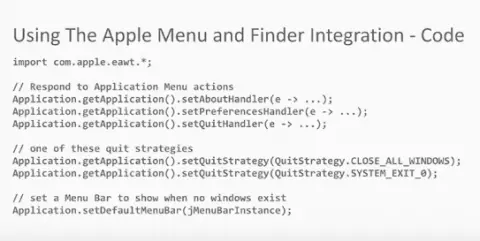
While I’m in the Java lambda neighborhood, here are some more examples of the Java lambda syntax, in this case showing how I use the lambda syntax for some java.awt.Desktop event handlers:

desktop.setAboutHandler(e ->
    JOptionPane.showMessageDialog(null, "About dialog")
);
desktop.setPreferencesHandler(e ->
    JOptionPane.showMessageDialog(null, "Preferences dialog")
);
desktop.setQuitHandler((e,r) -> {
        JOptionPane.showMessageDialog(null, "Quit dialog");
        System.exit(0);
    }
);

That code comes from my Java 10 on MacOS About, Preferences, and Quit handlers example.

If you’re into lucid dreaming, LionsRoar.com has an interesting article, What is dream yoga and how do I do it?

What is dream yoga and how do I do it?

UPDATE: The approach below worked with Java 8, and here is a link to the new solution for macOS and Java 14 and newer.

I wrote earlier about how to use the javapackager command to create a macOS application bundle from a Java application, so I won’t repeat all of that information here. Instead, in this article I just want to show how to display an image that’s stored in the Contents/Resources/Java directory of a Mac/Java application bundle.

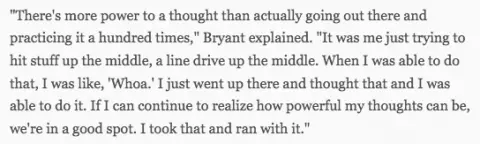
In this image, the Chicago Cubs’ Kris Bryant talks about the power of thought. As I always try to tell people, all you are is attitude.

Cubs Kris Bryant on the power of thought

Question: How do I pass command-line parameters to my Scala application when I’m running the application with SBT?

Solution: There are two different possible scenarios here:

If you ever need to change the password you used to encrypt your Linux Mint hard drive — the full disk encryption of the entire hard disk you used when you installed Mint — I just found that the commands at this linuxmint.com page worked as desired.

In short, I used this command to see how my hard drive was encrypted:

sudo lsblk -o name,size,fstype,label,mountpoint

I’ll show that output when I get back on that Mint system, but it looked similar to the output shown on that linuxmint.com page, except my crypto_LUKS setting showed up on /dev/sda5.

Once I knew that was the partition I needed to work with, I used this command to see that my initial password was indeed in “Key Slot 0”:

sudo cryptsetup luksDump /dev/sda5

After that I added a new disk encryption password to Key Slot 1 using this command:

sudo cryptsetup luksAddKey /dev/sda5 -S 1

It prompted me for the password in Key Slot 0, and then asked me to enter a new password for Key Slot 1. (It also prompted me to confirm this new password.) I then rebooted the system and was able to use this new password when I was prompted to do so immediately after the computer booted up. For good measure I added another password to Key Slot 2 using this command:

sudo cryptsetup luksAddKey /dev/sda5 -S 2

I also verified that it worked by rebooting the system.

In my case I hadn’t lost the password I had in Key Slot 0, I just could never remember it, so I decided to create a new password that was plenty long, but that I could also easily remember.

(I’ll try to remember to update this article with more details the next time I’m back on that Linux Mint system.)

I get to have another operation (surgery) next week, but I still hope to have the next version of my book on Scala and functional programming available by the end of the month.

If you’re interested in packaging Java applications on macOS, this is a good `javapackager` video on YouTube.

javapackager video (macOS and java)

As a note to self, this apple.com Maintaining Your Signing Identities and Certificates page contains information on signing identities, certificates, provisioning profiles, developer accounts, developer id certficates, the keychain access app, exporting certificates, and more.

Apple: Maintaining Your Signing Identities and Certificates

UPDATE: Please note that the approach shown below worked with Java 8, and here’s a new ‘jpackage’ tutorial for Java 14 and macOS.

I recently learned how to use the Java javapackager command to build a macOS application bundle — i.e., a regular macOS application — from a Java application. In this tutorial I’ll show how to create a Mac application bundle from a simple Java class, in this case a Java Swing class.

Here’s a YouTube discussion of the story behind the song, “Brandy, You’re a Fine Girl.”

“Because I was afraid of worms, Roxanne! Worms!”

I was surprised to learn that when you sign a macOS application, the signing process doesn’t sign every file under the .app application directory. Here’s a quote from the Apple developer docs:

“Your app’s executable code is protected by its signature because the signature becomes invalid if any of the executable code in the app bundle changes. Note that resources such as images and nib files aren’t signed; therefore, a change to these files doesn’t invalidate the signature.”

I live in Colorado, where cellular reception can be very hit or miss because of the mountains and rolling hills. As just one example there are only two spots in my apartment where I can make a phone call. So when I’m at home trying to view a website using Safari on my iPhone and the page is loading really slow, I find it really annoying that my iPhone is trying to use my cellular data rather than my home wireless network (WiFi).

Note: Apple implies that the cellular data is “assisting” the WiFi, but with the poor cell reception here, I can confirm that this feature just slows down my iPhone internet speed.

Solution: How to turn off cellular data access when on WiFi

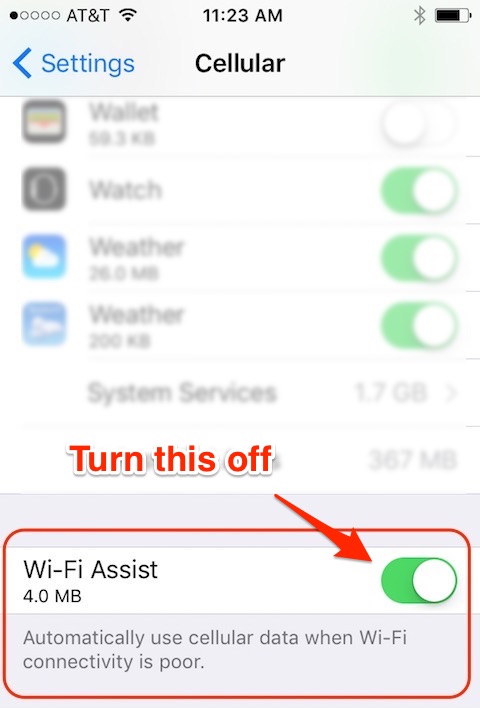
Fortunately there’s a way with an iPhone and iOS to turn off this annoying feature. Apple calls this technique “Wi-Fi Assist,” and you can disable it by:

  • Go to Settings on your iPhone
  • Tap Cellular
  • Scroll down (way down) on that screen until you see the Wi-Fi Assist setting. Disable it.

This is what that cellular setting looks like on my iPhone running iOS 10.2:

The iPhone/iOS Wi-Fi Assist setting

If the button background is green (as shown), tap it once to turn off this feature. After you do this your iPhone should just use WiFi data.

Note: It would be nice if you could turn this feature on for poor networks (like when you’re sitting at Starbucks, Panera Bread, etc.) but off for your home network, but unfortunately Apple doesn’t let you do that.

Summary

If, like me, you have a good home WiFi network and poor cellular reception, I think you’ll find that this tip will speed up your iPhone internet access speed. It can also save you money on your cellular data plan.

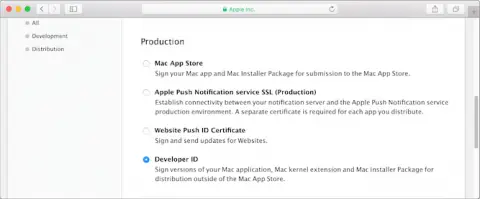
Over the last two days I’ve gotten a Mac/Java app ready for Apple’s Mac App Store, including bundling the application as a macOS “.app” application bundle, and signing it so it can be submitted to the Store.

A relatively quick look at my browser history shows that I needed to hit over 260 URLs to get that done. As a wise professor once told me, “Keep learning, keep learning.”