Scala, Java, Unix, MacOS tutorials (page 387)
There are some very interesting things you can do with the Mac Finder. Unfortunately one thing you can do is mess up the left side of the Finder (the Sidebar). Anyone with a Mac and a small child has had the "What happened to my Finder?" experience, as items on the left side of the Finder, particularly in the "Places" section, are suddenly missing.
A very important warning: When you drag your folder over to the PLACES section of the Finder, make sure your image looks like the image shown above, where the folder is clearly going to be placed between two existing folders. If you drag your folder over to the left side, and you're highlighting another folder in the PLACES section, you're going to end up moving your folder to that other folder. That's a great technique for moving your folder from one place to another, but it's not what I'm trying to describe here.
One of the cool things about the Mac Finder is that you can create shortcuts, or bookmarks, to folders that you visit frequently. This is cool, because instead of clicking around to get to your commonly used directories, you can get to them with just one mouse click. That's as fast I can think to make it.
Problem: You're using the Mac Finder, and you're in one directory, and you need to move to a directory/folder that is somewhere else in the system hierarchy. It sure would be easy if you could just type in the name of the folder you want to move to, but you don't know how to do this.
Solution: Whenever you're using the Mac Finder, or other Finder-related components in Mac OS X applications, you can use this magic keystroke to let you type in the name of a directory/folder that you want to move to:
[Shift][Apple][g]
Problem: You have a plain text file that has been compressed with the gzip command, and you'd like to display the file contents with the Unix/Linux cat or more commands.
Solution: Instead of using the cat or more commands, use their equivalents for working with gz files, the zcat and zmore commands.
Linux find FAQ: How do I use the Linux find command to find multiple filename extensions (patterns) with one find command?
Problem
You want to use the Unix/Linux find command to search for multiple filename types (or patterns). You know you can run the find command several times, one for each filename extension you're looking for, but there must be a way to search for multiple filenames at one time.
Problem: You need to use the Unix/Linux find command to search multiple folders. Specifically, you'd like to search several folders beneath your current location, but not all folders.
For example, your current directory may have 20 subdirectories, and you don't want to search them all like this:
find . -name "*.java"
or this:
Problem
You need to reverse the meaning of a search you're performing with the grep command. For instance, you've been searching for pepperoni pizza orders like this:
grep pepperoni pizza-orders.txt
and now you need to find all orders that don't have pepperoni.
Solution
Just add the -v switch to your grep search command, like this:
Wow, last night Google announced a new project named the "Google Chrome Operating System" -- and it's not April 1st. Here's a brief blurb from their blog post:
I've been writing back and forth to a friend a lot lately, and we've been passing back and forth various famous quotes from history. I've been surprised at some of the quotes from Bill Cosby and Lucille Ball. I always thought of them as comedians, but they have some interesting things to say about life as well.
Here are a few quotes from Bill Cosby:
It seems like every week, as I become more proficient with using Mac OS X, I learn a new keystroke or keyboard command that is helpful in making me faster. During the last week I finally learned that I can create a new folder within the current Finder folder using this keystroke:
[Shift][Apple][n]
iTunes Question: Is there a way to control iTunes from the keyboard when using Mac OS X?
Answer: Yes, there is a nice (and free) little program named Sizzling Keys that lets you control iTunes even when iTunes is minimized, hidden, or being displayed in another Space in the Mac OS X operating system. Just download and install Sizzling Keys, and select the key combinations you want to use to control iTunes.
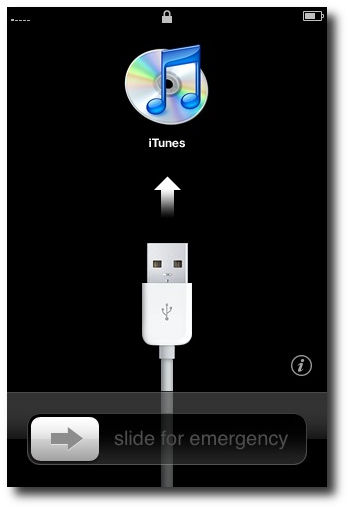
I'm not sure what I keep doing, but every once in a while when I turn on my iPhone 3G (after turning it off completely, i.e., a restart/reboot) I see a couple of different weird "error" messages. The first error message says, "Slide for emergency", and looks like this:

The content of this post was sent to me in an email from a friend, where he mentioned it as a job interview question. As I just learned, this question was (also) posed in the movie 16 Blocks, featuring Bruce Willis and Mos Def. Regardless of its origin, it presents a fun problem (though I personally wouldn’t ask it during a job interview).
They know the rules, and can also offer advice
Like a good accountant, a good CFPS not only knows the bean-counting rules, they also know a lot of general rules, and a couple of "magic formulas", and they're willing to share that information with you.
As I've written several articles lately about Function Point Analysis (FPA), it occurred to me that, just as any other service, there's a big difference between being a Certified Function Point Specialist (CFPS), and a really valuable CFPS.
So, if you're interested in hiring a CFPS, or renting a CFPS consultant, I'd like to share a few thoughts here about what I think makes a good CFPS.
A good Function Point specialist
I don't sell my services as a CFPS any more, but when you're looking for a good CFPS, I think a good CFPS is like a good accountant:
Using FPA, I quickly worked through several of our largest projects to determine our productivity rates, and also noted who worked on the projects, what technologies were used, along with a few other details. In short, in a few days I was able to create a database of our historical software development speed.
Drupal front page FAQ: How do I make a Drupal page (node) the front page of my Drupal website?
Drupal front page approaches
There are several ways to control the content of your Drupal front page, but if you just want to use a Drupal node as the front page of your site, you can set this on the Site Information admin page.
The running program
The Quaqua JSheet effect is very nice, it works as advertised. My only problem with it currently is that it does something to distort the image when the JSheet is displayed. You can see this problem in the image shown below, where the coffee cup image that sits on top of the caution image does not look very good: